
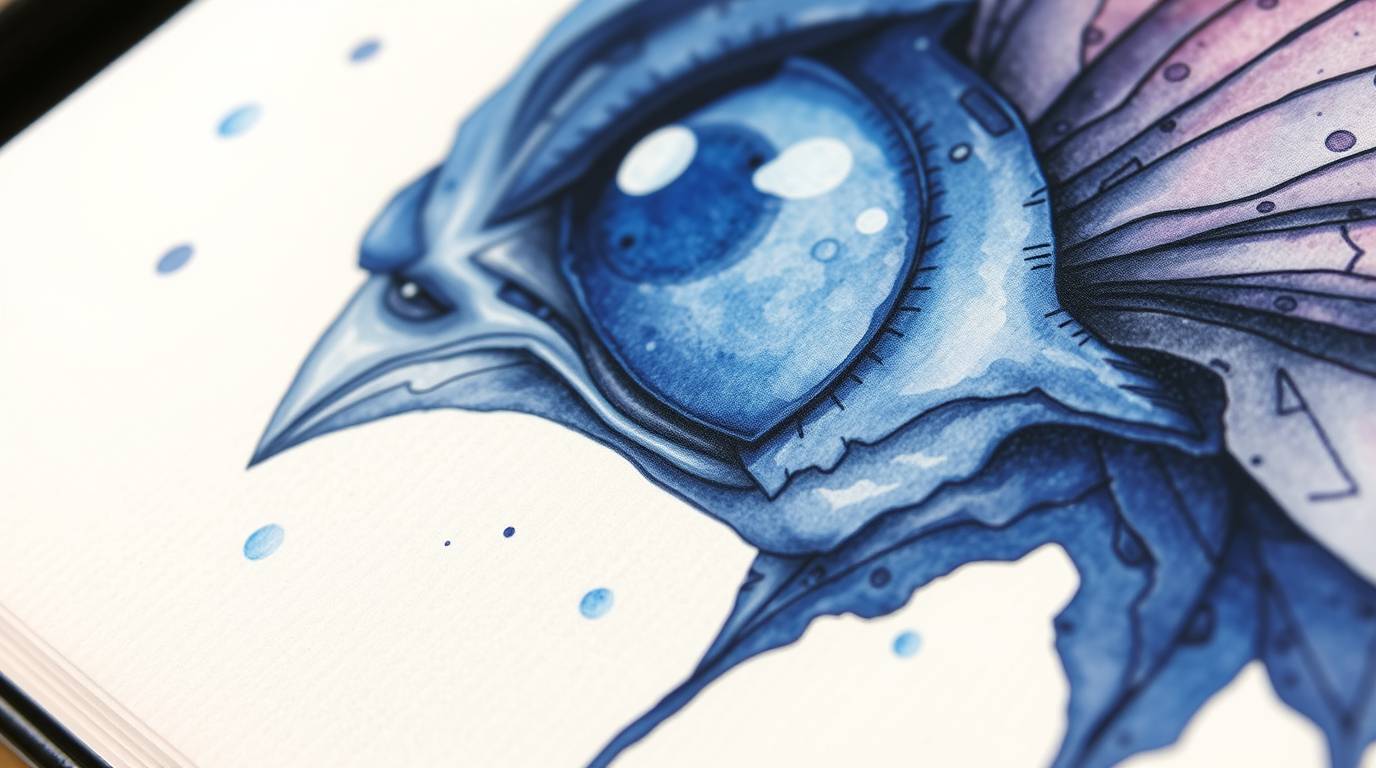

For a long time, I thought watercolor journal pages had to be painted by hand.
Messy desk. Real brushes. Hours of trial and error.
Then AI came into my workflow and everything changed.
Not in a “replace creativity” way, but in a speed-up imagination way.
I’ll walk you through exactly how I design a full watercolor journal page using AI, step by step. This is the same approach I use for printable journals, prompt packs, and product-ready designs even if the final page still gets refined later in Canva.
You don’t need to be a professional illustrator.
You just need intention, structure, and the right prompts.
Step 1: Define the journal page purpose
Before opening any AI tool, I always ask one question:
What is this page for?
A watercolor journal page is not just “pretty art.” It needs a job.
Examples:
- Daily reflection page
- Gratitude journaling
- Affirmation writing
- Morning pages
- Emotional check-in
- Creative writing space
This matters because it affects:
- How much blank space you leave
- Where visual elements should not exist
- The emotional tone (calm, hopeful, dreamy, grounding)
For this tutorial, let’s assume the goal is:
A calm, printable watercolor journal page with a large blank center for writing.
Keep that sentence in mind it will guide every prompt decision.
Step 2: Choose the right AI art tool
You can do watercolor-style journal pages in many tools, but some behave better than others.
From experience:
- Leonardo AI → great control, clean watercolor textures, printable-friendly
- NightCafe → good for painterly styles and sketch-to-image workflows
For beginners, I recommend starting with NightCafe or any tool that allows:
- Aspect ratio control
- Style consistency
- Prompt reuse
This tutorial assumes a general AI tool the logic stays the same.
Step 3: Lock your layout first
The biggest mistake I see:
People generate art first…
Then try to “find space” for journaling later.
That almost never works.
Instead, you must tell the AI where NOT to draw.
Your journal page needs:
- A clear blank center
- Decorative elements pushed to borders or corners
- Soft transitions, not harsh framing
Think like a page designer, not an artist.
Step 4: Write a layout-aware watercolor prompt
Here’s a base prompt structure I use again and again:
Watercolor journal page illustration with a large empty center space for writing, soft hand-painted texture, gentle color washes, decorative elements placed only around the edges, calm and minimal composition, high-resolution, printable quality
Now let’s expand it into something richer.
Example prompt (ready to generate)
Watercolor journal page illustration with a large blank center space for writing, soft blush and sage green watercolor washes, delicate floral elements and leaves placed only along the corners and borders, light paint splashes and paper texture, calm and airy composition, minimal visual clutter, no text, no harsh outlines, high-resolution, printable journal page, peaceful and mindful mood
Key things happening here:
- “large blank center space” → repeated intentionally
- “placed only along the corners and borders” → controls composition
- “no text” → avoids AI adding words
- “printable journal page” → improves layout balance
Step 5: Control color and emotion
Watercolor lives and dies by mood.
Before generating multiple versions, decide:
- Warm or cool?
- Morning or evening energy?
- Nature-based or abstract?
Some reliable watercolor palettes:
- Blush + beige → emotional, gentle, introspective
- Sage + cream → grounding, nature-focused
- Lavender + blue → calm, dreamy, reflective
- Earth tones → healing, stability, safety
You don’t need many colors. Two or three is perfect.
Step 6: Generate variations
Never stop at the first result.
I usually generate:
- 4–8 variations of the same prompt
- Slight tweaks to color words or elements
Example tweaks:
- Change “floral elements” → “soft botanical branches”
- Change “sage green” → “muted eucalyptus green”
- Add “subtle gold watercolor accents” (very lightly)
Then I pick:
- The cleanest center
- The least visual noise
- The softest transitions
That image becomes the base design.
Step 7: Post-processing
AI gives you 80% of the magic.
The last 20% makes it feel intentional.
In Canva, I might:
- Slightly blur busy edges
- Brighten the center area
- Reduce saturation by 5–10%
- Crop to A4, A5, or US Letter
- Add bleed margins if it’s for print
Sometimes I don’t edit at all but knowing when to stop is part of design maturity.
Step 8: Test it like a real journal page
Before calling it “done,” I ask:
- Can I comfortably write a full paragraph in the center?
- Does my eye rest, or feel distracted?
- Would I enjoy journaling on this page at night?
If the answer is no, I adjust the prompt and regenerate.
That’s normal. That’s design.
Step 9: Turn one page into a full journal set
Once you have one successful page, scaling is easy.
You can create:
- 10–20 pages using the same structure
- Color variations
- Theme variations (floral, ocean, forest, celestial)
This is how full journals are born not from random prompts, but from systems.
Final thoughts
AI didn’t make me less creative.
It made me:
- More intentional
- More experimental
- More focused on design thinking instead of brush control
If you treat AI like a collaborator instead of a magic button, it becomes one of the most powerful tools in journal design.